> For the complete documentation index, see [llms.txt](https://docs.aimlapi.com/llms.txt). Markdown versions of documentation pages are available by appending `.md` to page URLs; this page is available as [Markdown](https://docs.aimlapi.com/integrations/sillytavern.md).
# SillyTavern
Connect 200+ top-tier models — Claude 3.5, GPT-4o, Gemini 1.5, LLaMA 3, Mistral and others — directly to SillyTavern using AI/ML API, an OpenAI-compatible provider.
## About
[SillyTavern](https://github.com/SillyTavern/SillyTavern) is a locally installed user interface that allows you to interact with text generation LLMs, image generation engines, and TTS voice models. Integration with the AI/ML API currently applies only to LLMs.
***
## Installing SillyTavern (Fresh Setup)
{% hint style="info" %}
Adapted from the official SillyTavern [README / Installation](https://github.com/SillyTavern/SillyTavern?tab=readme-ov-file#-installation)
{% endhint %}
### Windows (Recommended: SillyTavern Launcher)
{% hint style="warning" %}
**Warning:**
* Do **not** install into any Windows‑controlled folder (Program Files, System32, etc.).
* Do **not** run `Start.bat` with administrator permissions.
* Windows 7 is **not** supported (requires Node.js 18.16+).
{% endhint %}
1. Make sure **Node.js** (latest LTS) and **Git** are installed.
2. Open **Run** (`Win + R`) and execute:
```bash
cmd /c winget install -e --id Git.Git
```
3. In **File Explorer**, navigate to a non‑system folder (e.g. `C:\SillyTavern`), click the address bar, type `cmd` and press Enter.
4. Clone the release branch and launch SillyTavern:
{% code overflow="wrap" %}
```bash
git clone https://github.com/SillyTavern/SillyTavern -b release
cd SillyTavern
start Start.bat
```
{% endcode %}
5. After the installer finishes, a browser window will open with the SillyTavern interface.
***
### Linux / macOS
1. Install **Git** and **Node.js** (via your distro’s package manager or Homebrew).
2. In a terminal, run:
```bash
# Clone the release branch
git clone https://github.com/SillyTavern/SillyTavern -b release
cd SillyTavern
```
3. Make the startup script executable and run it:
```bash
chmod +x start.sh
./start.sh
```
4. Open your browser to the URL shown in the console (default: `http://localhost:8000`).
{% hint style="success" %}
For Docker, Termux, GitHub Desktop, and other installation methods, see the full [Installation section](https://github.com/SillyTavern/SillyTavern?tab=readme-ov-file#-installation) in the upstream README.
{% endhint %}
***
## Connecting AI/ML API in SillyTavern
### Step 1. Launch SillyTavern → Set Persona
* On first launch you'll see "Welcome to SillyTavern"
* Enter `AI/ML API` as the **Persona Name** for example
* Click **Save**
> This step is required to unlock the chat UI.
### Step 2. Go to Connection Settings
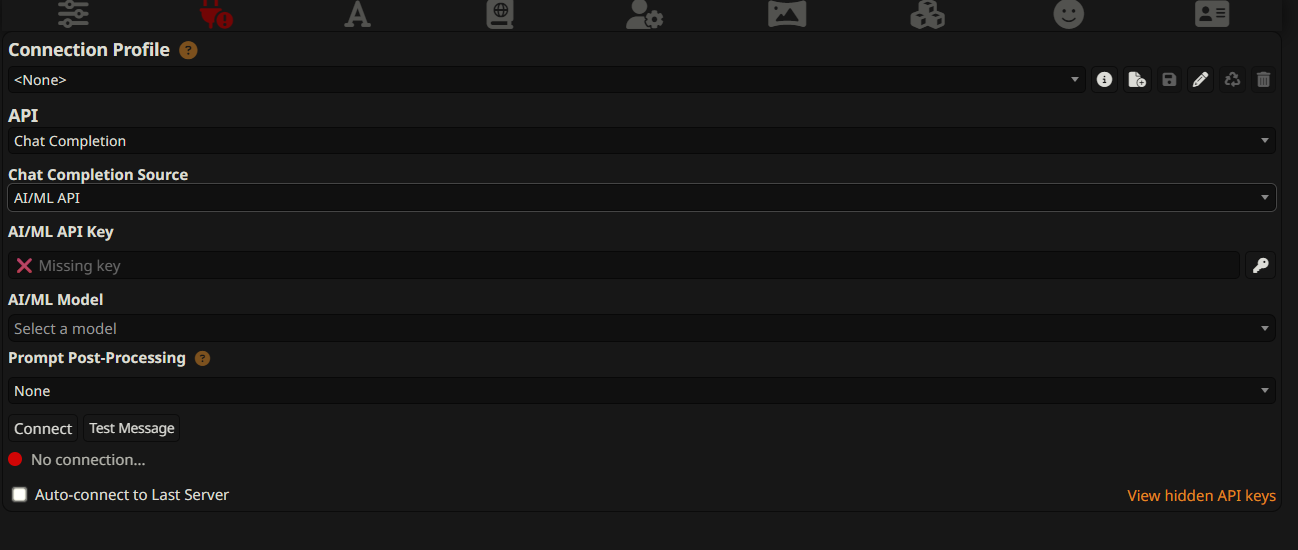
* Open ⚙ **Settings** tab → **Connection Profile** (Second tab)
* Configure:
* `API`: Chat Completion
* `Chat Completion Source`: AI/ML API
### Step 3. Enter API Key
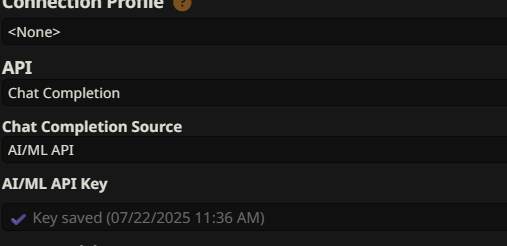
1. Copy the API key from [your account page](https://aimlapi.com/app/keys).
2. Paste into the **AI/ML API Key** field.
3. Click 🔑 icon to save — it should show a timestamp.
### Step 4. Choose a model
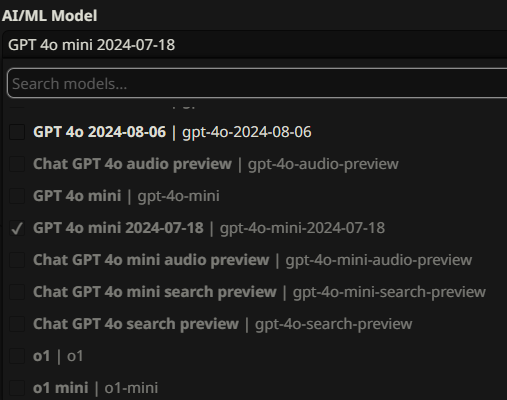
Click the dropdown next to **AI/ML Model** and pick any model such as:
### Step 5. Test Connection
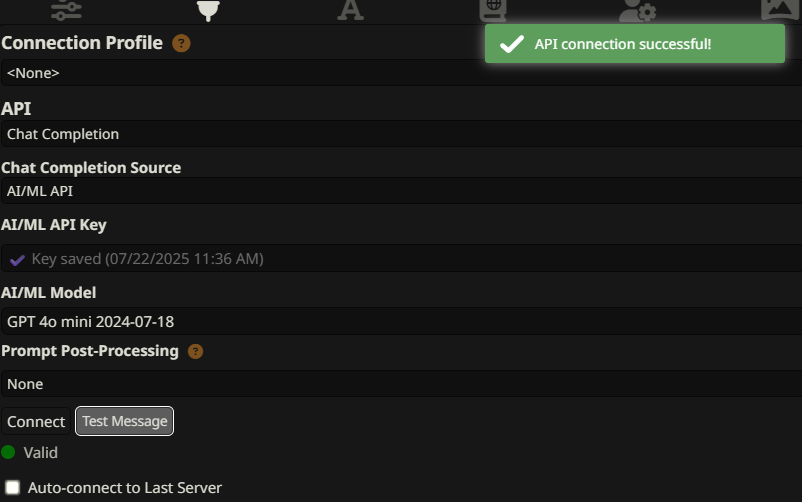
Click **Connect** and then the **Test Message**.
* You should see `API connection successful`.
* 🟢 Status: `Valid`.
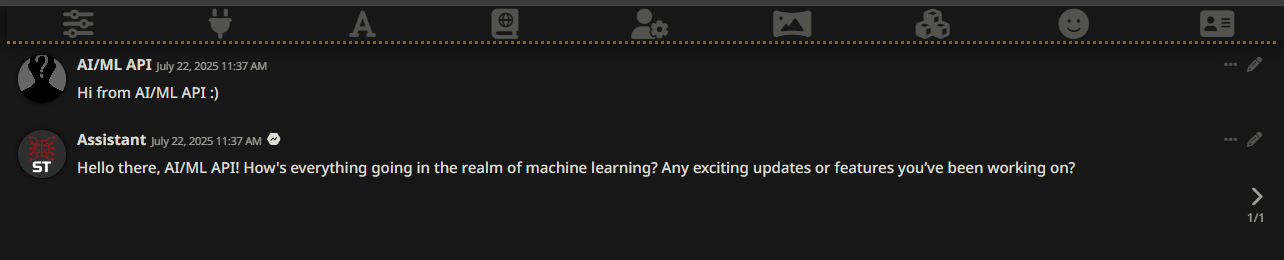
### 💬 Step 6. Send a Message
Use the input box below to send a test message:
If all is set up, you’ll see the assistant reply like this:
***
### 🎉 Step 7. Done – You’re All Set!
You’re now connected to AI/ML API and can start chatting with any of 200+ models.
{% hint style="success" %}
Tip: Try Claude 3.5, GPT-4o, Gemini 1.5 or explore more in [Model Playground](https://aimlapi.com/app?utm_source=sillytavern\&utm_medium=github\&utm_campaign=integration)
{% endhint %}
***
## ✅ Config checklist
Field
Value
API
Chat Completion
Source
AI/ML API
API Key
******** (saved)
Model
gpt-4o-mini-2024-07-18
Status
✅ API connection successful
***
## 🔗 Internal Links
* [Model Browser](https://aimlapi.com/models?utm_source=sillytavern\&utm_medium=github\&utm_campaign=integration)
* [Your API Keys](https://aimlapi.com/app/keys?utm_source=sillytavern\&utm_medium=github\&utm_campaign=integration)
* [Community & Feedback](https://aimlapi.com/community?utm_source=sillytavern\&utm_medium=github\&utm_campaign=integration)
---
# Agent Instructions
This documentation is published with GitBook. GitBook is the documentation platform designed so that both humans and AI agents can read, navigate, and reason over technical content effectively. Learn more at gitbook.com.
## Querying This Documentation
If you need additional information that is not directly available in this page, you can query the documentation by asking a question.
Perform an HTTP GET request on the following URL with the `ask` and `goal` query parameters:
```
GET https://docs.aimlapi.com/integrations/sillytavern.md?ask=&goal=
```
`ask` is the immediate question: it should be specific, self-contained, and written in natural language.
`goal` is what the user is ultimately trying to achieve, the reason they need the answer. Sharing it helps GitBook give you a better, more relevant answer. A goal is most helpful when it describes the outcome the user wants rather than restating the question. For example, with `ask=how do I create an API token`, a goal like `automate deployments from our CI pipeline` lets GitBook tailor the answer to that use case.
The response will contain a direct answer to the question and relevant excerpts and sources from the documentation.
Use this mechanism when the answer is not explicitly present in the current page, you need clarification or additional context, or you want to retrieve related documentation sections.