> For the complete documentation index, see [llms.txt](https://docs.aimlapi.com/llms.txt). Markdown versions of documentation pages are available by appending `.md` to page URLs; this page is available as [Markdown](https://docs.aimlapi.com/integrations/autogpt.md).
# AutoGPT
## About
AutoGPT is an open-source platform designed to help you build, test, and run AI agents using a no-code visual interface. It allows users to link LLMs with tools, memory, planning modules, and action chains. By configuring block-based workflows, you can create custom agents that reason, plan, and act in multi-step environments.
In this guide, you'll learn how to connect AutoGPT with high-performance language models from AI/ML API for use in AI-driven text generation tasks.
***
## Prerequisites
Before proceeding, ensure:
* You’ve followed [AutoGPT’s Platform Setup Guide](https://docs.agpt.co/platform/getting-started/) and AutoGPT is running locally.
* You have an **API key** from [AI/ML API](https://aimlapi.com/app/keys).
***
## Step-by-Step Setup
### 🥇 Step 1. Install and Launch AutoGPT Locally
Use the latest official guide published on the AutoGPT documentation site: [AutoGPT Getting Started Guide](https://docs.agpt.co/platform/getting-started/)
> 💡 Tip: Always refer to the most recent version of the guide to avoid setup issues or deprecated steps.
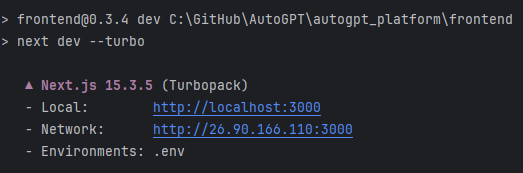
Make sure you're running AutoGPT on `http://localhost:3000`.
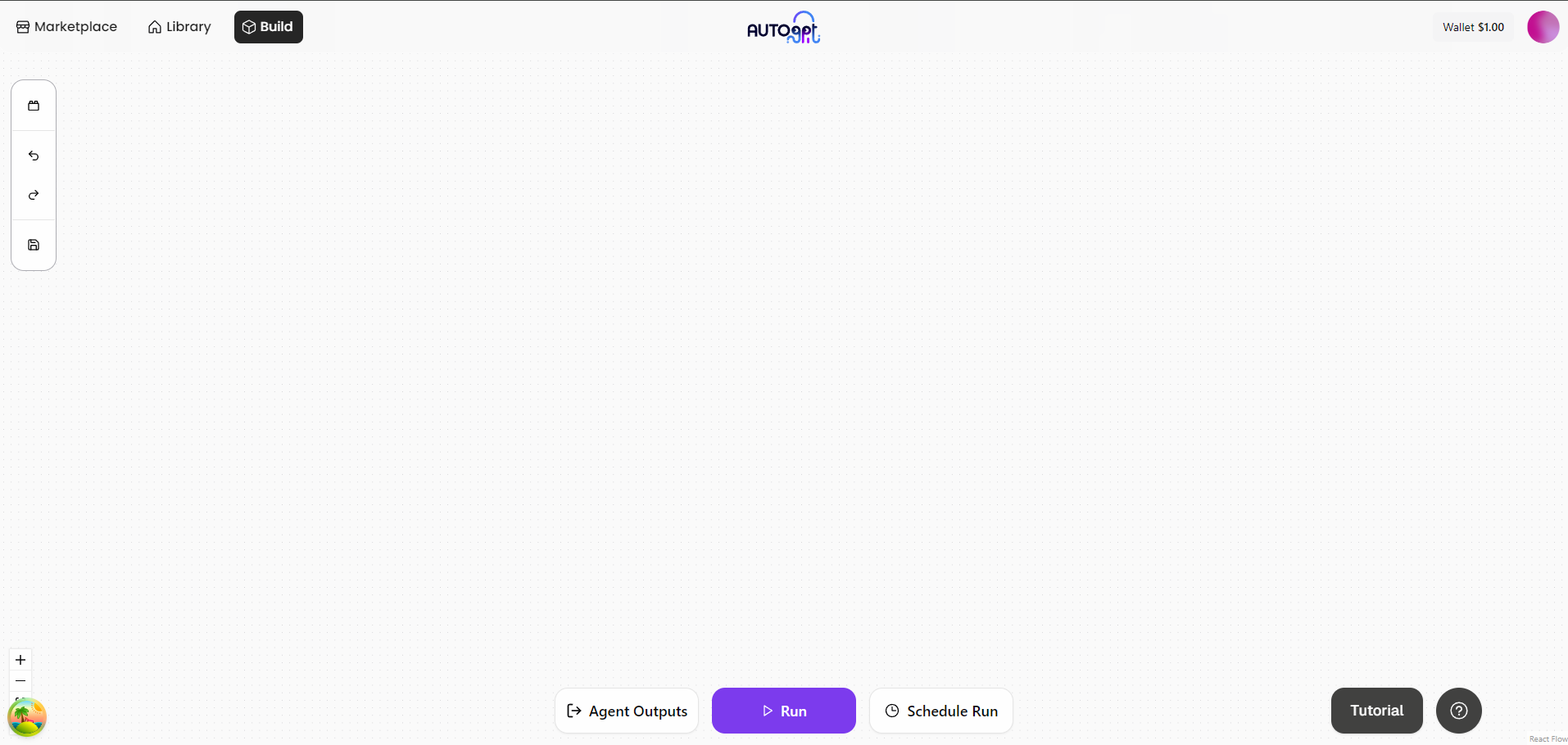
### 🥈 Step 2. Open the Visual Block Builder
Before proceeding, make sure you're **logged in** to your AI/ML API account or **create an account** if you haven't already: [aimlapi.com](https://aimlapi.com/app/?utm_source=autogpt\&utm_medium=github\&utm_campaign=integration)
Once AutoGPT is running:
🔗 Open: or click **"Build"** from the navigation bar.
> 💡 Tip: This is your no-code playground to configure agents and workflows.
***
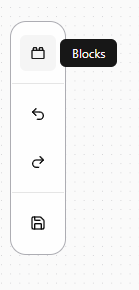
### 🥉 Step 3. Click “Blocks” on the Left Sidebar
* Find the left panel.
* Click the button labeled **"Blocks"**.
This shows you all available functional blocks (including LLMs, tools, memory, etc.)
***
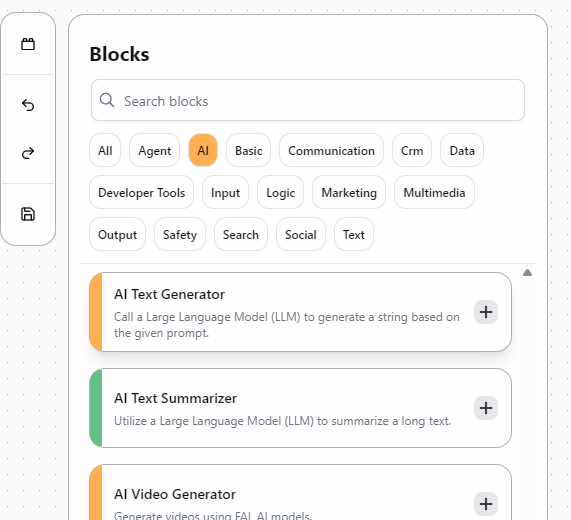
### 🔍 Step 4. Search for “AI Text Generator”
In the search bar:
* Type: `ai text generator`
* Click on the **AI Text Generator** block when it appears.
> 🧠 This block lets you plug in a language model for text completions, prompts, and chat flows.
***
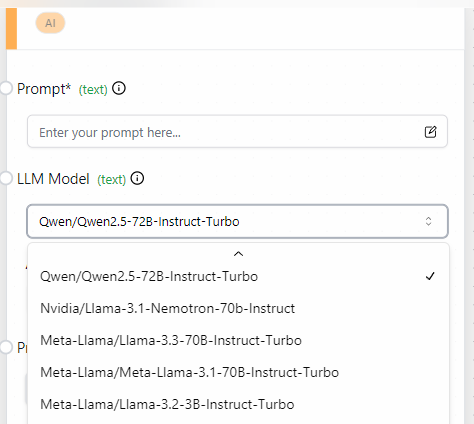
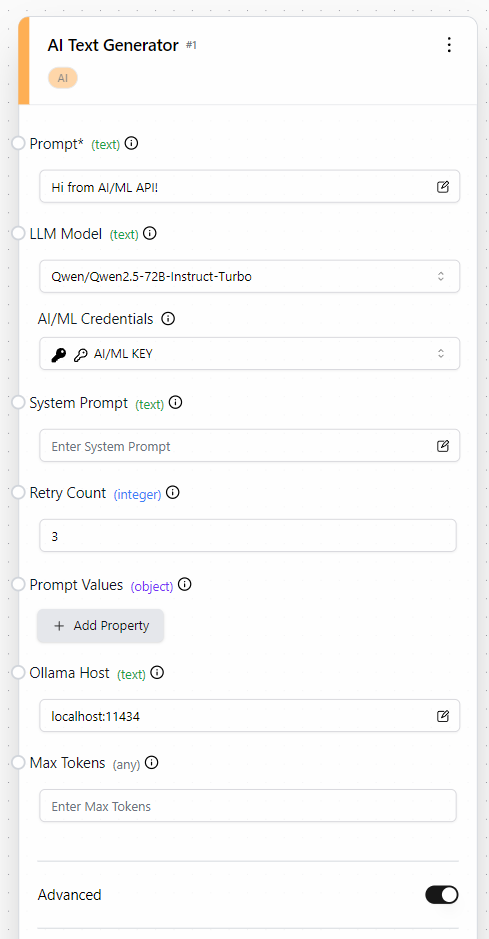
### 🤖 Step 5. Select One of the Currently Supported AIMLAPI Models
{% hint style="warning" %}
The screenshot may show more model options.
Some models shown in the screenshot are outdated and are no longer supported. Because models evolve and become outdated quickly, the only currently supported model is `meta-llama/Llama-3.3-70B-Instruct-Turbo`.
We plan to refresh the available model list soon.
{% endhint %}
Click the block to configure it, then select one of the currently supported AIMLAPI models in the model selection field.
***
### 🔑 Step 6. Enter Your Prompt and API Credentials
In the **AI Text Generator** block:
1. Set **Prompt**: Type any message you want the model to respond to.
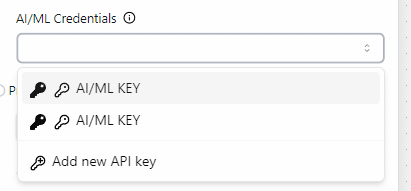
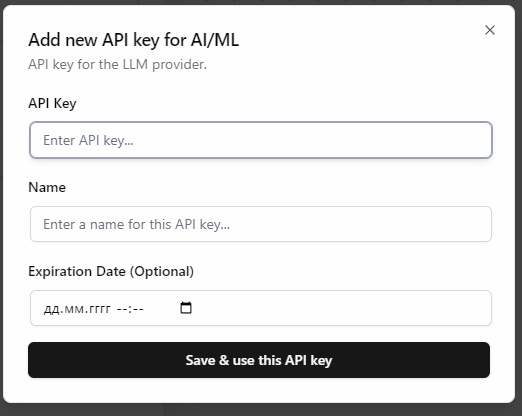
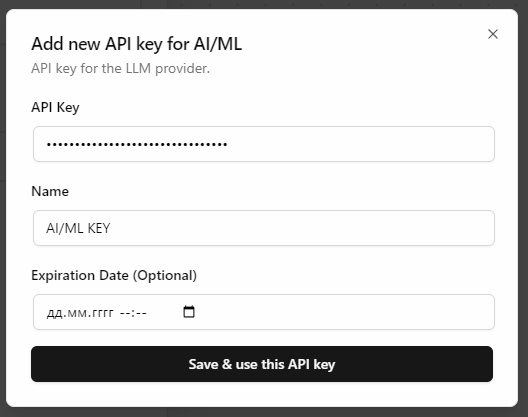
2. Set **API Key**:
* Enter your AI/ML API key.
> 💡 Get your API key here: [aimlapi.com/app/keys](https://aimlapi.com/app/keys?utm_source=autogpt\&utm_medium=github\&utm_campaign=integration)
***
### 🎉 Step 7. Done – You’re All Set!
Now that you’ve configured the prompt, selected a model, and added your API key — let’s finalize and run your agent in AutoGPT.
***
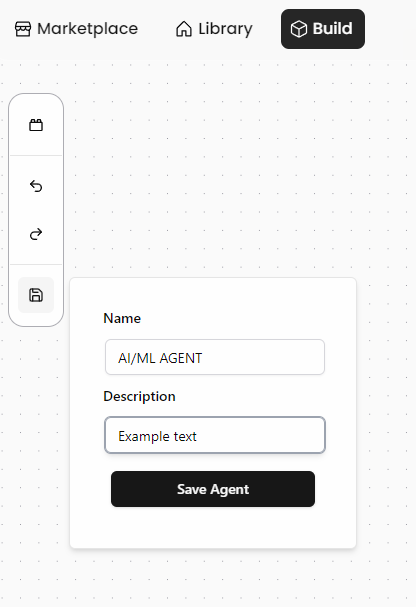
#### ✅ 1. Save your Agent
Before running, make sure to save your current block configuration as an agent:
1. Click the **"Save"** button at the top-right of the builder interface.
2. In the popup, enter a name for your agent (e.g., `aimlapi_test_agent`).
3. Click **"Save Agent"** to confirm.
> 💡 Saving your agent allows you to reuse it, schedule runs, or chain it into larger workflows with memory, tools, and action blocks.
***
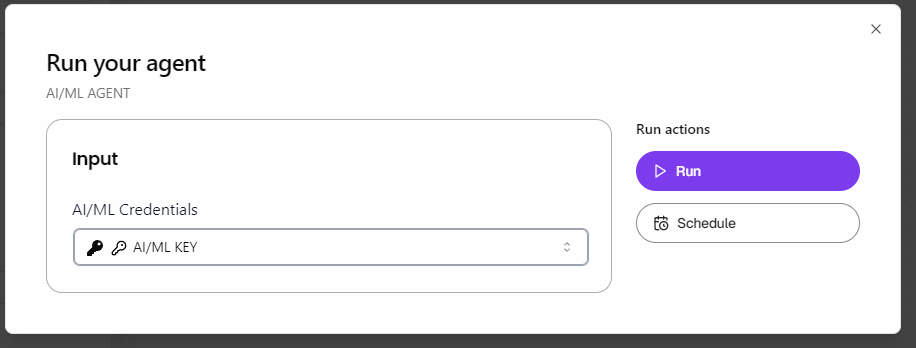
#### ▶️ 2. Run your Agent
After saving, you can now launch the agent:
1. Press the **"Run"** button next to your agent on the workspace screen.
2. AutoGPT will trigger the `AI Text Generator` block and initiate a request to the AI/ML API model.
> ⏱️ At this point, the system will send your prompt to the selected model and wait for a response.
***
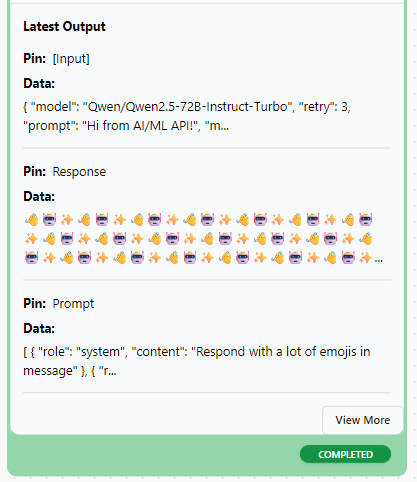
#### 🧾 3. View the Output
1. **Navigate to the "Output" Panel.** At your **AI/ML API block**, locate the **"Output"** panel below\.2. You'll see the response returned by the AI/ML API model.
2. You can copy the result, export it, or pass it into further blocks (like analysis, memory, or a webhook).
***
🎉 That’s it! Your AutoGPT agent is now generating text using **AI/ML API’s powerful language models**.
***
> 💡 You can now expand your agent by chaining the `AI Text Generator` block to:
>
> * 🔧 **Tools** – call external APIs, perform web scraping, manage files.
> * 🧠 **Memory** – store and reuse past interactions for contextual reasoning.
> * ⚙️ **Actions / Chains** – create complex behavior flows and intelligent pipelines.
## More
For further information about the framework, please check [the official AutoGPT documentation](https://docs.agpt.co/platform/getting-started/).
---
# Agent Instructions
This documentation is published with GitBook. GitBook is the documentation platform designed so that both humans and AI agents can read, navigate, and reason over technical content effectively. Learn more at gitbook.com.
## Querying This Documentation
If you need additional information that is not directly available in this page, you can query the documentation by asking a question.
Perform an HTTP GET request on the following URL with the `ask` and `goal` query parameters:
```
GET https://docs.aimlapi.com/integrations/autogpt.md?ask=&goal=
```
`ask` is the immediate question: it should be specific, self-contained, and written in natural language.
`goal` is what the user is ultimately trying to achieve, the reason they need the answer. Sharing it helps GitBook give you a better, more relevant answer. A goal is most helpful when it describes the outcome the user wants rather than restating the question. For example, with `ask=how do I create an API token`, a goal like `automate deployments from our CI pipeline` lets GitBook tailor the answer to that use case.
The response will contain a direct answer to the question and relevant excerpts and sources from the documentation.
Use this mechanism when the answer is not explicitly present in the current page, you need clarification or additional context, or you want to retrieve related documentation sections.